Adding, Assigning and Purchasing Team Members

Written by
Updated 3 years ago
How to add a team member to your account
Team Members are people you can assign to help edit & build your event. They also have the same permissions inside the event as the event owner, so they can work on event help, send out announcements, and if your plan allows, moderate chat & Q&A.
- To add a team member, go to your team member section in your account
- Click add a team member
- Enter their first name, last name and email
- That user will receive an automatic email inviting them to become a team member. They will need to follow the link provided in the email to accept
The number of team members you have available to add is based on your subscription plan. You can purchase additional team members on the platform, as required.
How to assign a team member to an event
Once you have added the user as a team member in your account section, you need to assign them to a specific event
- Go to your event builder
- Open the settings cog on the main event form
- Scroll all the way down and select your team member there
- For the user, the event will now appear in their dashboard under 'events I'm editing, owned by someone else)
- You'll need to repeat this process for each event that you want to give the team member edit right to.
Purchasing additional team members
- In your dashboard, using the bottom left navigation bar, go to "Team Members"
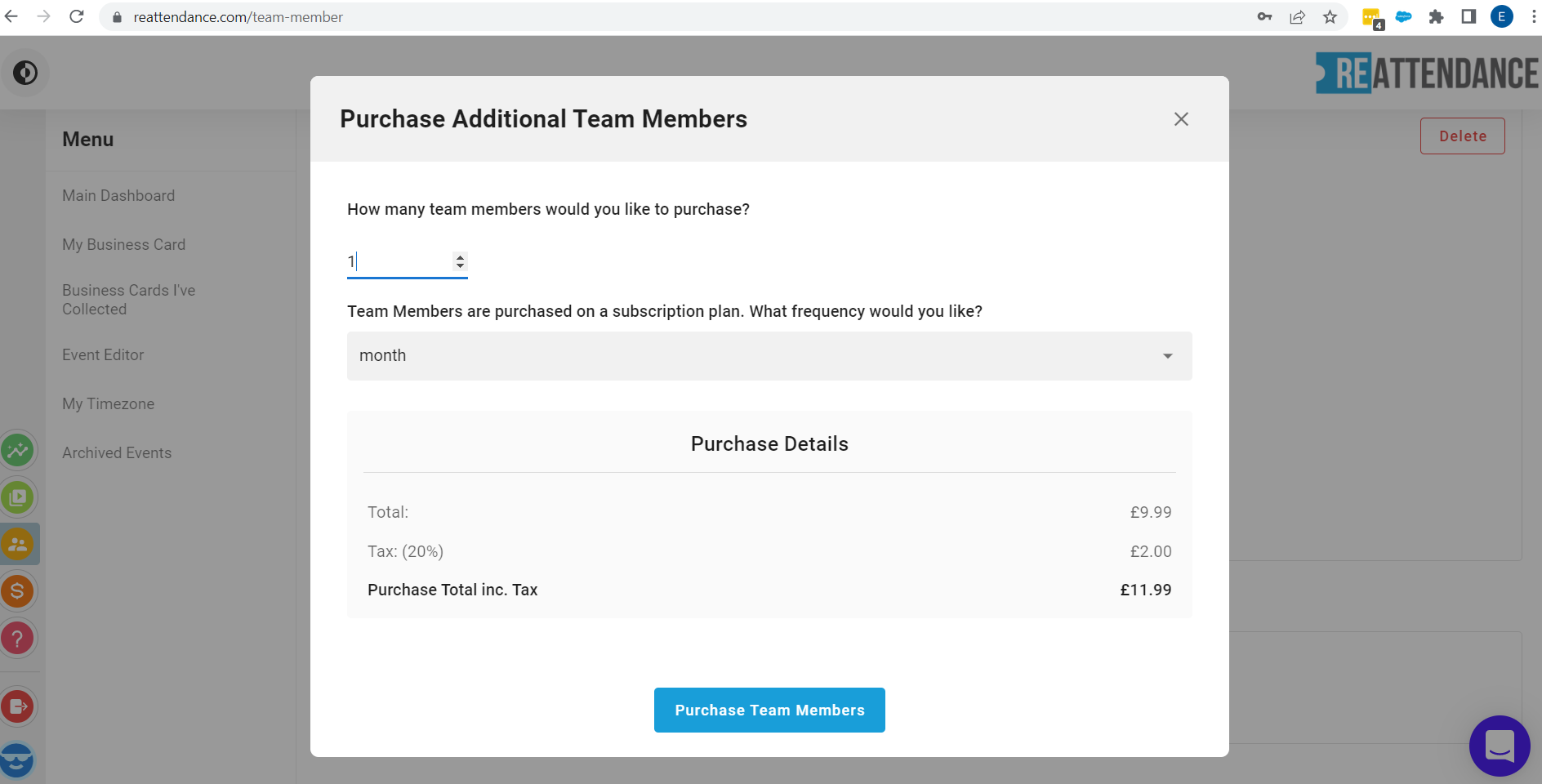
- Click on Purchase Additional Team Members
- Choose number of team members required
- Select whether you'd like to be charged monthly or annually
- Check the total
- Click "Purchase Team Members"
- Follow the steps and confirm card payment
- You receipt/subscription will show under "My Billing" on your dashboard
💡Tip - Contact a member of the Reattendance team to cancel any team members subscriptions